How to Create Kubernetes Templates
The following guide will walk you through the steps to create Kubernetes templates for your applications. Kubernetes templates help streamline the deployment and management of applications by providing reusable configurations.
Create a Kubernetes template
To create a Kubernetes template, you can follow these steps:
- On the GlobalAI dashboard and access to the Kubernetes Templates section on the sidebar.
- Click on the Create template group button.
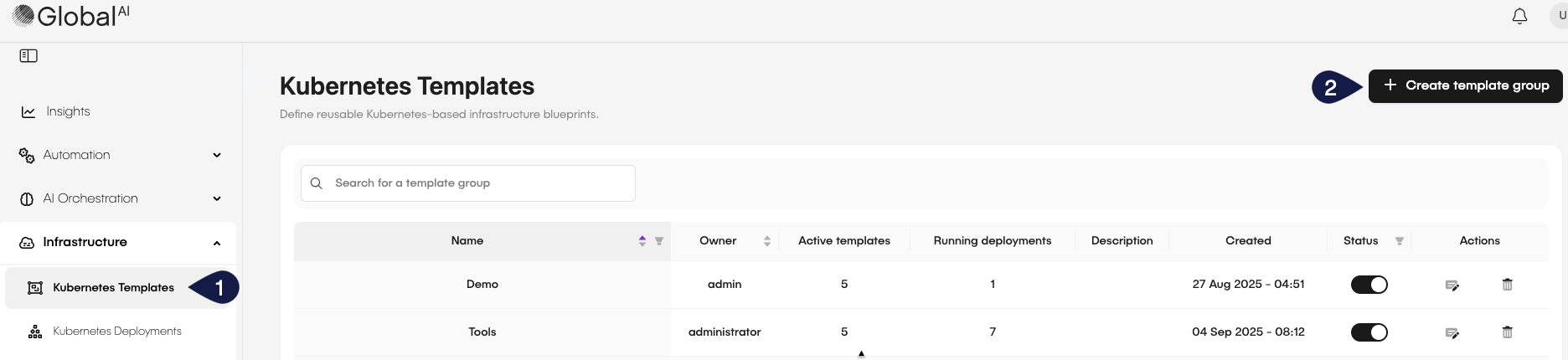
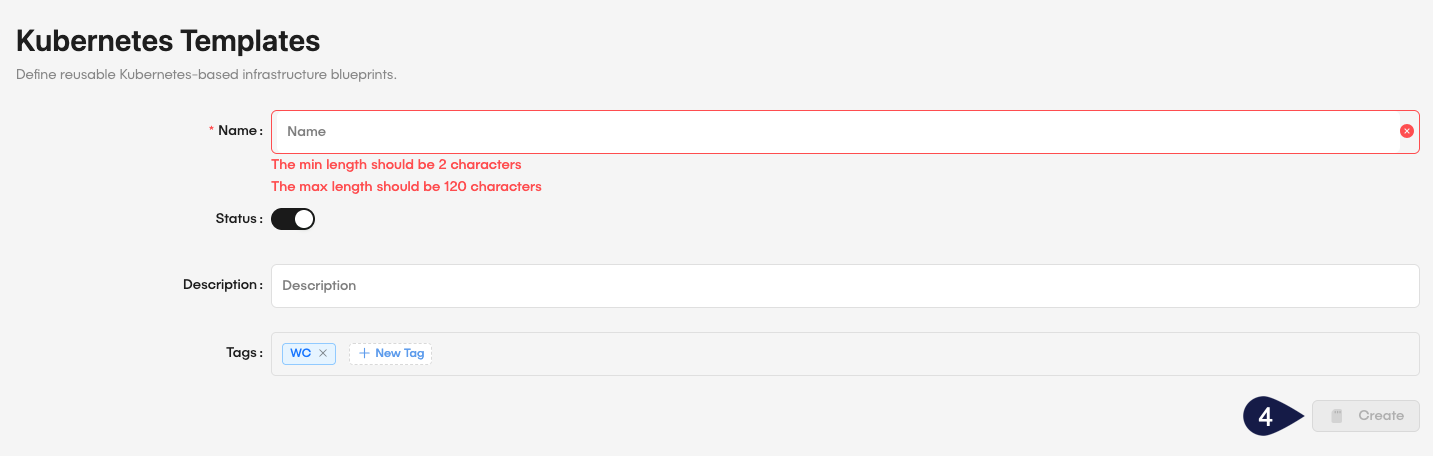
- Fill in the required details:
- Name: Provide a unique name for the template.
The min length should be 2 characters and the max length should be 120 characters.
- Status: Toggle the button to set the template as active or inactive.
- Tags: Add relevant tags to categorize the template.
- After filling in the details, click Create to save the new template.
Manage the Kubernetes templates
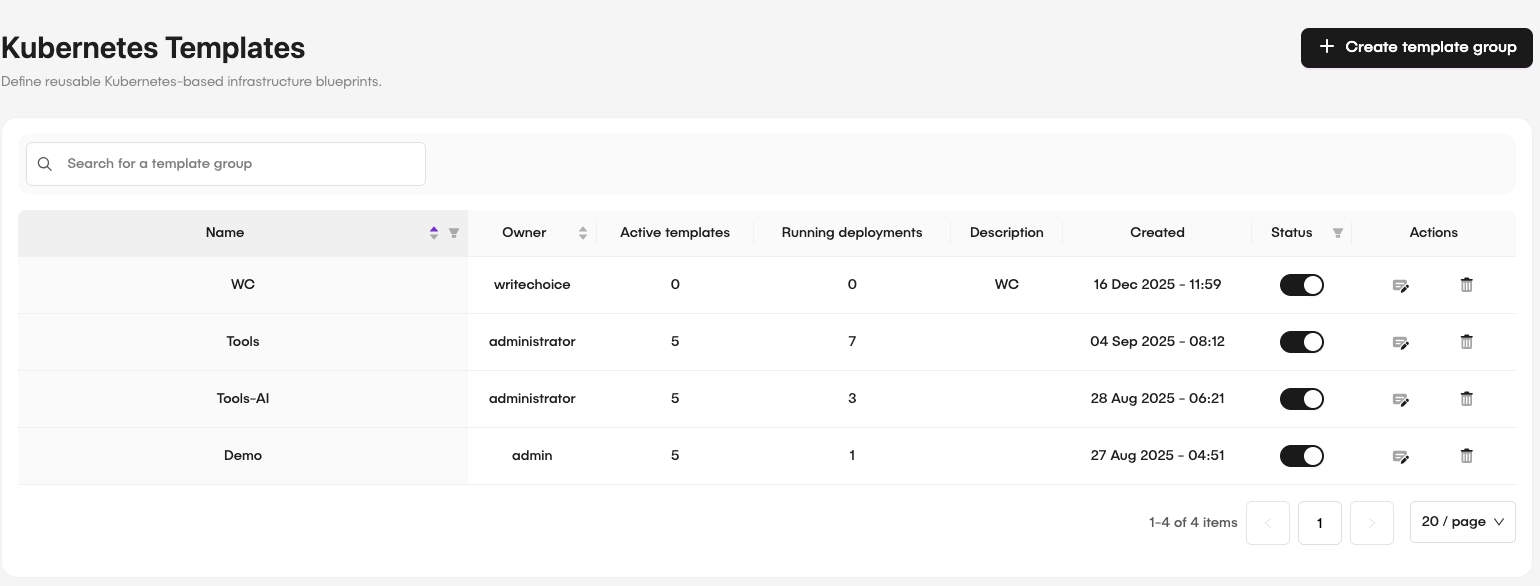
Once you have created a template, you can manage it by adding or editing configurations as needed. You can also assign templates to specific applications or services to ensure consistent deployment across your Kubernetes clusters. After creation, the Kubernetes Templates page lists the templates where you can view, edit, or delete them as required.
Edit a Kubernetes template
To edit an existing Kubernetes template, follow these steps:
- On the GlobalAI dashboard and access to the Kubernetes Templates section on the sidebar.
- Locate the template you want to edit from the list.
- Click on the Edit button next to the template.
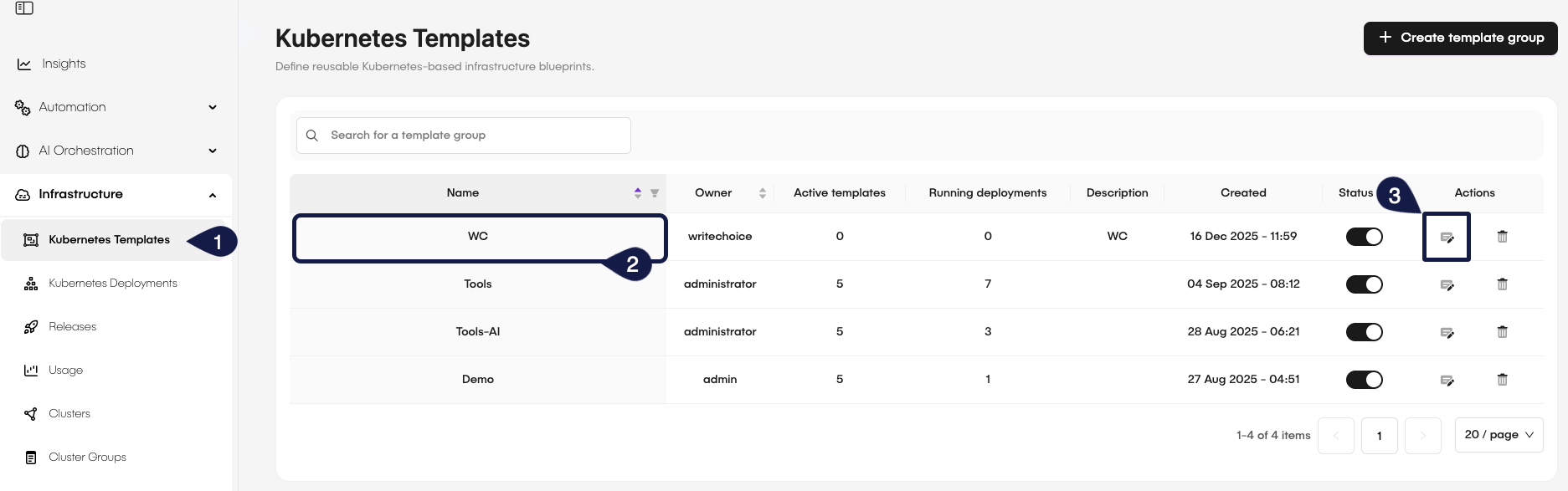
By clicking the Edit button, you can change the template's configurations, update its status, or change its tags. After making the necessary changes, click Save to update the template.
Delete a Kubernetes template
To delete a Kubernetes template, follow these steps:
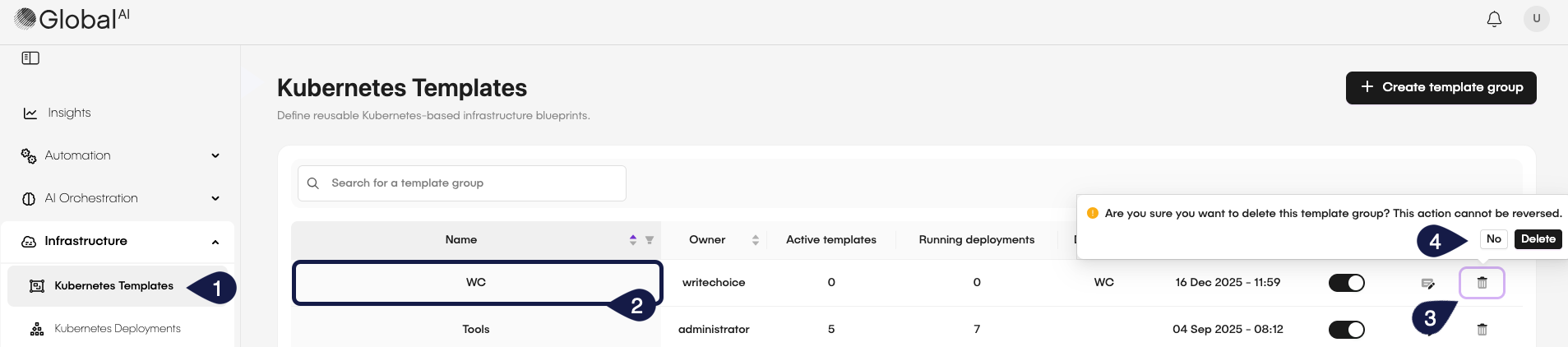
- On the GlobalAI dashboard and access to the Kubernetes Templates section on the sidebar.
- Locate the template you want to delete from the list.
- Click on the Delete button next to the template.
- On the confirmation dialog, click Delete to permanently delete the template.
- To cancel the deletion, click No.
Related articles
Now that you know how to create Kubernetes templates, you might want to learn more about:
How to Deploy and Manage Applications
Discover how to deploy and manage applications on your Kubernetes clusters using GlobalAI.
How to Manage Cluster Groups and Deployment Rules
Learn how to create and manage cluster groups and deployment rules in GlobalAI for efficient application deployment and management.