How to Manage Cluster Groups and Deployment Rules
Organize clusters into groups to help manage and deploy applications. This document outlines how to manage cluster groups and set deployment rules.
Cluster groups
Cluster groups let you categorize clusters based on criteria such as environment (for example, development, staging, production), geographic location, or any other relevant factor.
To create a cluster group, follow these steps:
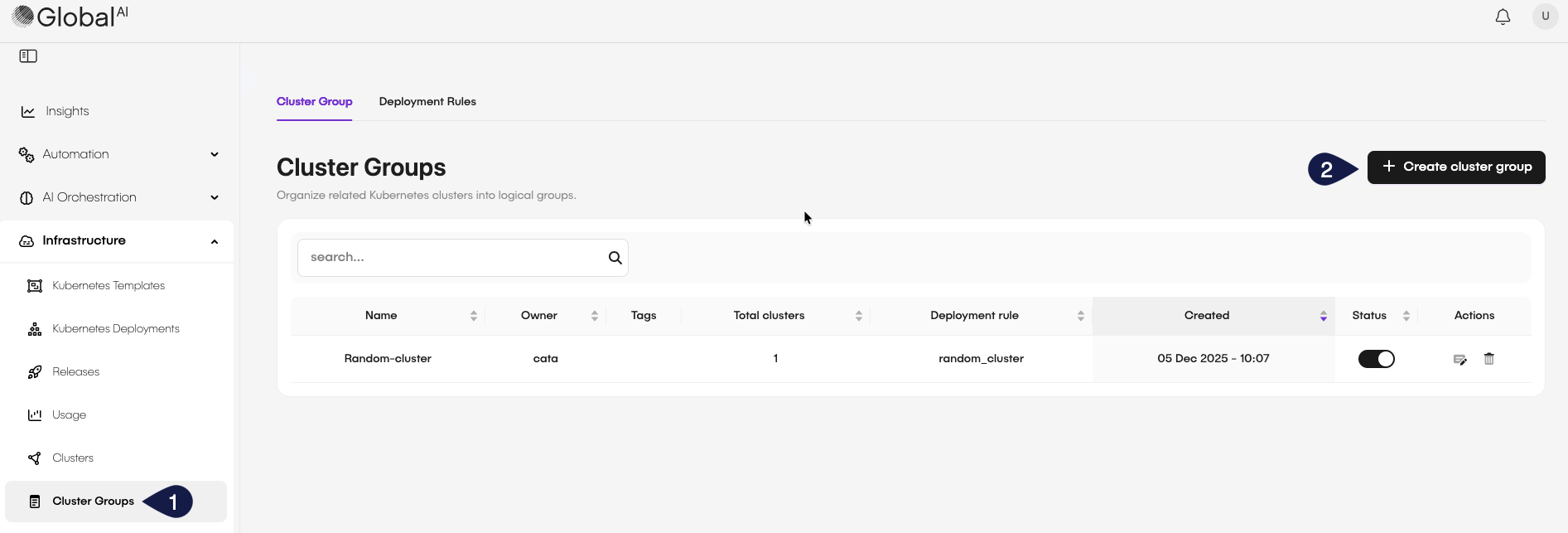
- On the GlobalAI dashboard access the Clusters Groups section on the sidebar.
- Click on the Create cluster group button.
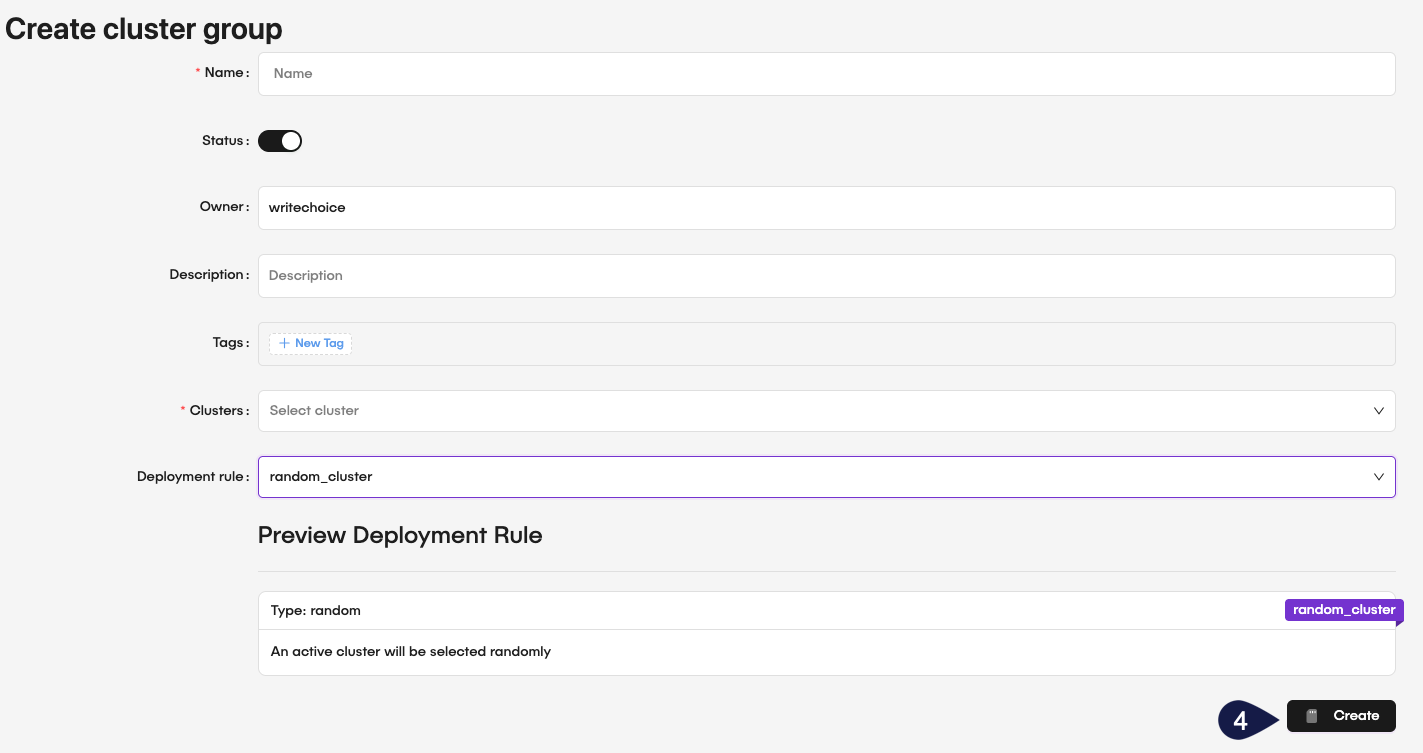
- Fill in the required details:
- Name: Provide a unique name for the cluster group.
- Status: Togle the button to set the group as active or inactive.
- Owner: Provide the owner of the cluster group.
- Description: Optionally, add a description to explain the purpose of the group.
- Tags: Optionally, add tags to help categorize and search for the group later.
- Clusters: From the dropdown menu, select the clusters to include in this group.
- Deployment Rule: From the dropdown menu, assign deployment rules that will apply to this group.
When you select a Deployment Rule for a cluster group, the system presents the deployment rule details to help you make the right choice.
- After filling in the details, click Create to save the new group.
Deployment rules
Deployment rules define how the system deploys applications and services across clusters within a group. They can include parameters such as deployment strategies, resource allocation, and scaling policies.
To create a deployment rule, follow these steps:
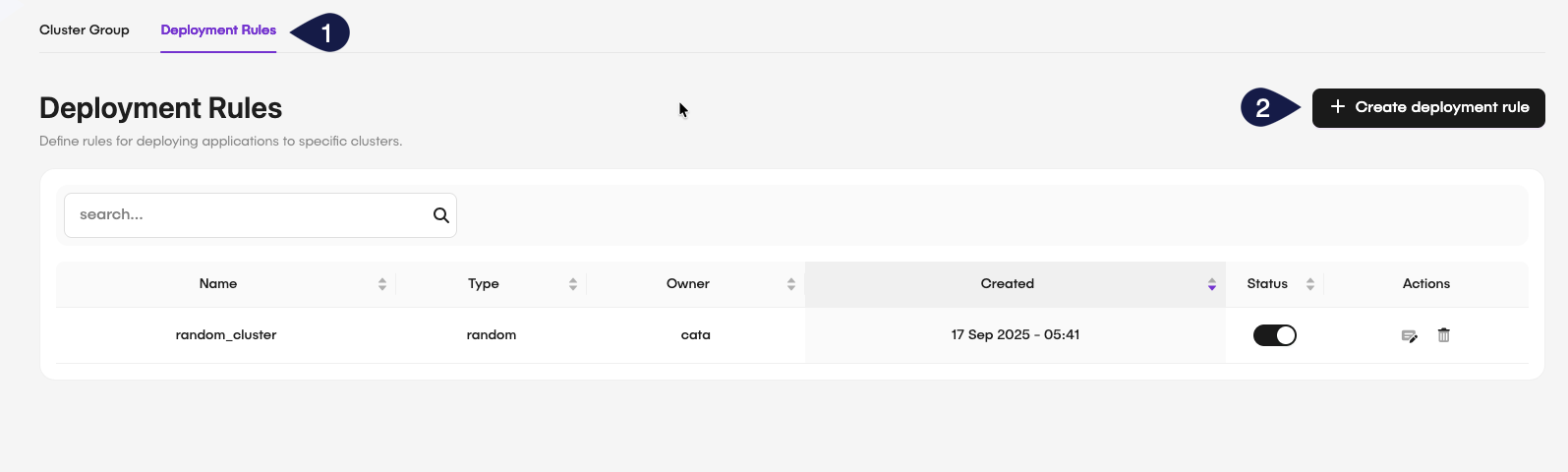
- On the Create Cluster Group page, select the Deployment Rules tab.
- Click on the Create deployment rule button.
-
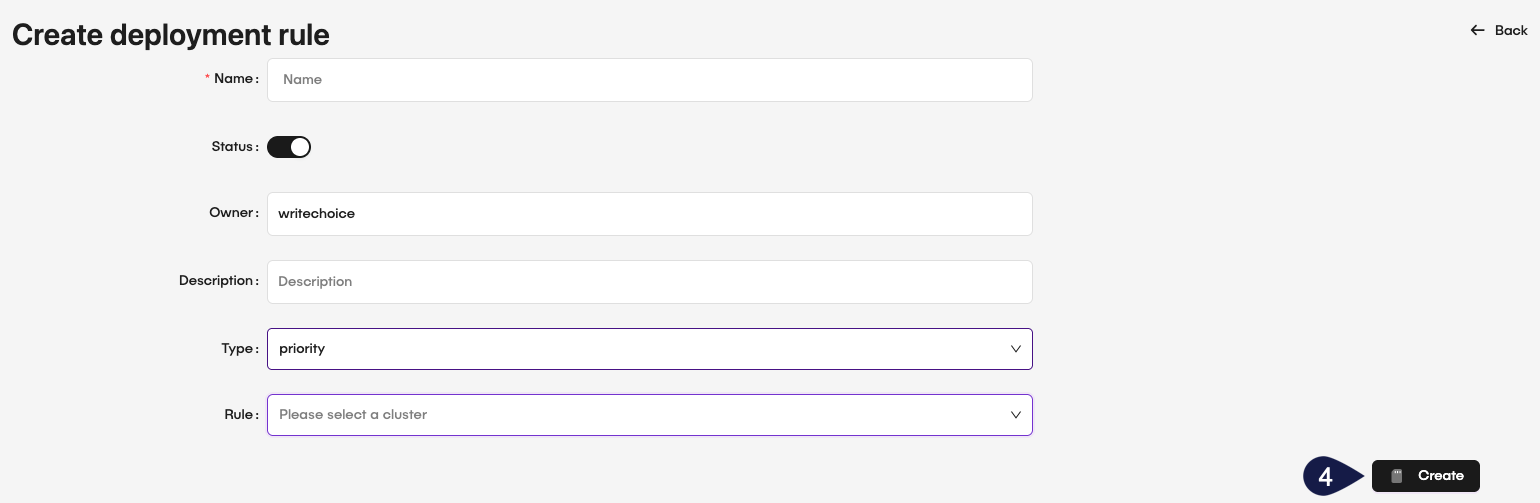
Fill in the required details:
- Name: Provide a unique name for the deployment rule.
- Status: Toggle the button to set the rule as active or inactive.
- Owner: Provide the owner of the deployment rule.
- Description: Optionally, add a description to explain the purpose of the rule.
- Type: Select the deployment rule type from the dropdown menu. The options are random or priority.
- Rule: From the dropdown menu, select the cluster groups where this rule applies.
-
After filling in the details, click Create to save the new deployment rule.
Related articles
Now that you know how to manage cluster groups and deployment rules, you might want to learn more about:
Configure Kubernetes Cluster
Learn how to create, update, and delete cluster groups in GlobalAI.
Create Kubernetes Templates
Learn how to create reusable Kubernetes templates for application deployment.
Deploy and Manage Applications
Discover how to deploy and manage applications on your Kubernetes clusters using GlobalAI.