How to Define Variables in a Workflow
This guide details the process for defining, accessing, and manipulating variables within a Global AI platform workflow, focusing on the expression syntax and the "Define Variables" node.
Use variables in a Workflow
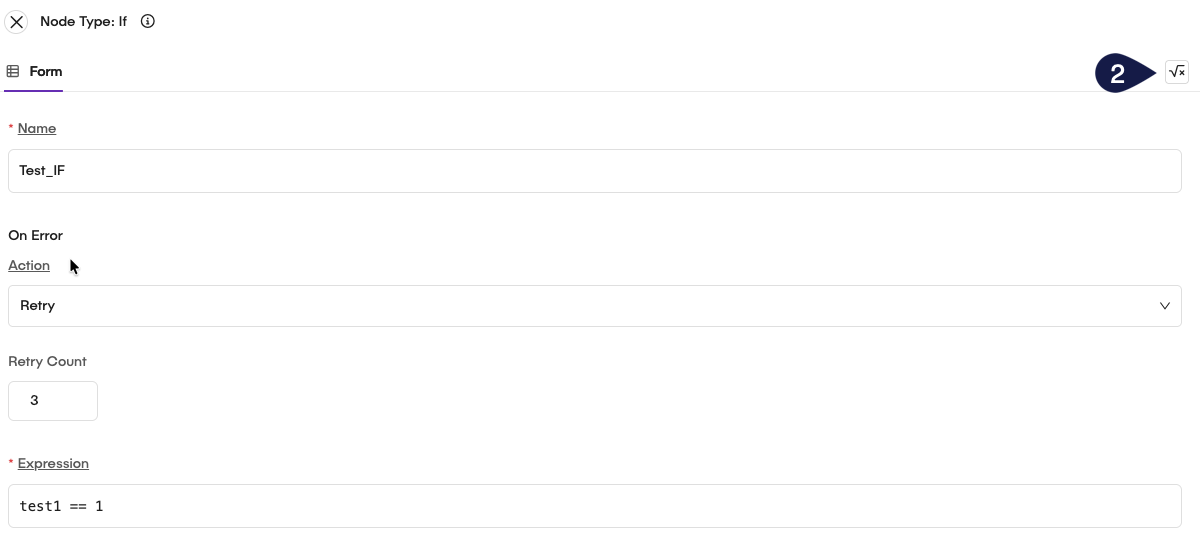
You can define variables in your workflow to use it with scripts, conditions, and other nodes. Variables help store data temporarily during the execution of a workflow. To define a variable:
- On a existing node, for example, a
bashnode, click on the node to open its configuration panel. - Click the Variables button on the configuration panel.
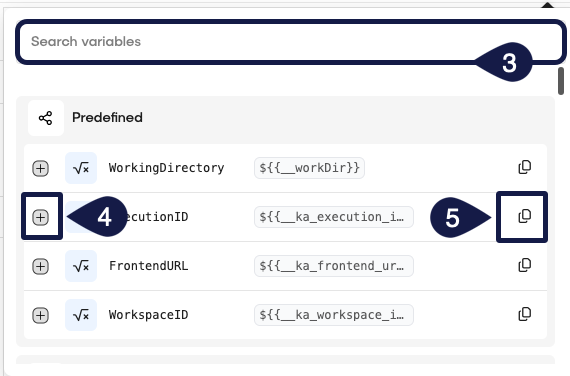
- Search for the variable you want to use it.
- Click on the + to see information about the variable and how to use it in your scripts or expressions.
- Click on the copy button to copy the variable syntax to your clipboard and paste it into your script or expression where needed.
Use variables with the code editor
You can also use variables directly in the code editor of nodes that support scripting, such as the bash or python nodes. To do this:
- Open the node's configuration panel by clicking on the node.
- In the code editor, you can reference variables using the syntax
${{ variable_name }}. For example, to use a variable namedinput_data, you would write${{ input_data }}in your script. - You can access all the variables by clicking on the Variables button in the node's configuration panel, which will open the panel with the tabs for Local, Global and Vault variables. Click on each tab to navigate through the different types of variables available.
- You can use the Search variables functionality to quickly find the variable you need.
Environment variables
You can always ask for help using the AI Chat available in the code editor. Just click on the AI chat button and ask for guidance, ideas, or examples on how to use variables in your scripts.
You can use environment variables in your workflow scripts. You can define every variable the way you need. To do this:
- On the code editor, click Env.
- On the Environment Variables panel, click on +.
- This will append two fields:
- Key: The name of the environment variable.
- Value: The value assigned to the environment variable.
- You can add as many environment variables as you need by clicking the +.
- Once you have defined your environment variables, you can reference them in your scripts using the standard environment variable syntax for the scripting language you are using. For example, in a bash script, you would reference an environment variable named
MY_VARas${{MY_VAR}}.
- Remember that environment variables defined in a node are only accessible within that node's execution context.
- Your environment variables will appear at the Input section of the execution panel, in
jsonformat.
For example:
{
  "MY_VAR": "my_value",
  "ANOTHER_VAR": "another_value"
}
Related articles
Now that you know how to define variables in a workflow, you can explore more about variable management and usage in the Global AI platform.