How to View Automation Logs
Automation Logs provide an audit trail for your automation environment. You can use them to track modifications to your components, helping you maintain compliance and accountability.
Use these logs to see who changed what and when. To debug the runtime execution of a workflow, you should use the Workflow Execution History instead.
Follow these steps to access and analyse your logs:
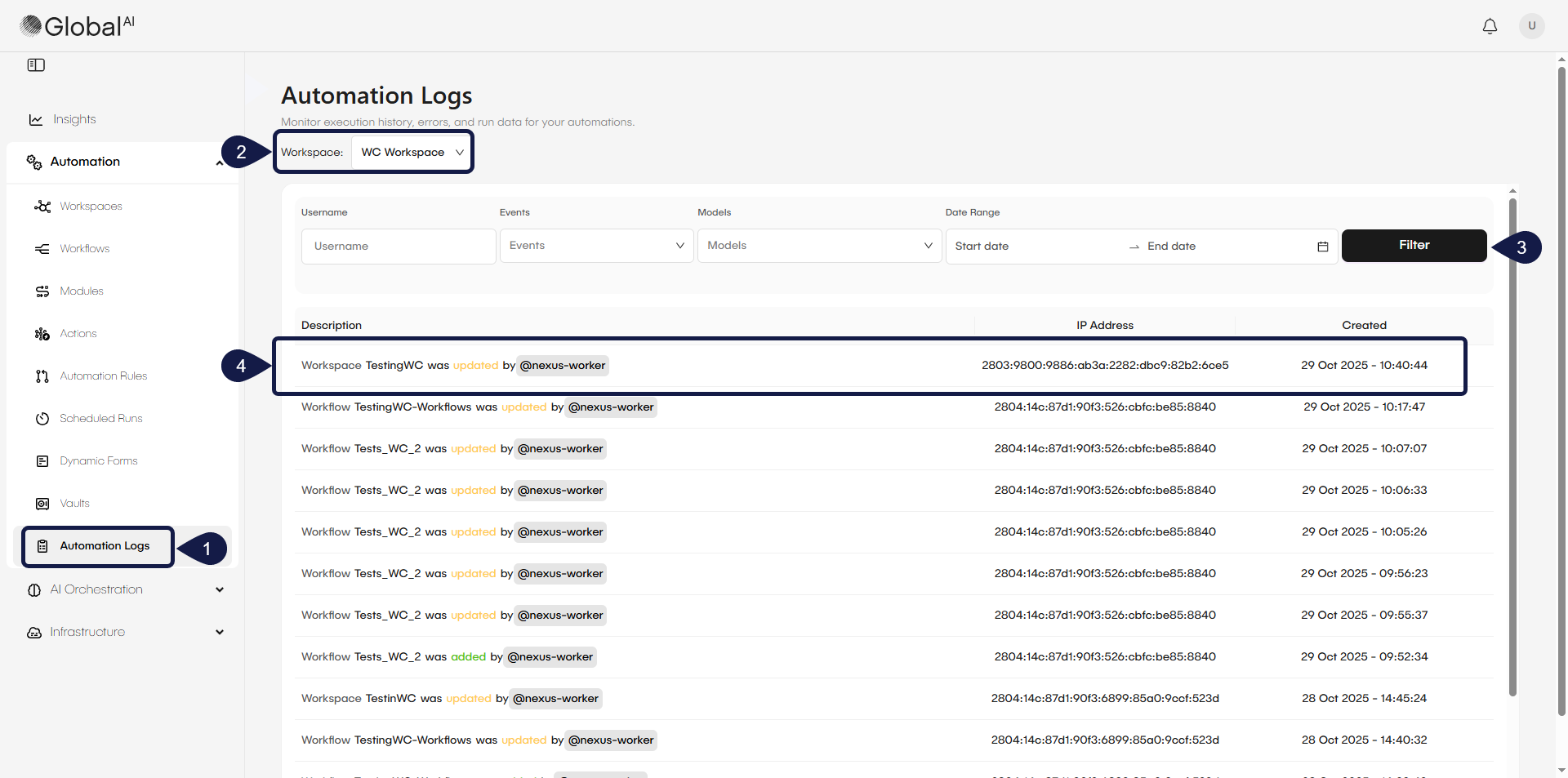
- From the main navigation menu, expand the Automation menu and click on Automation Logs.
- If prompted, select a Workspace from the modal window or dropdown menu. The Automation Logs page displays, showing a complete record of changes.
- (Optional) to refine the list, click the Filter button. You can narrow the logs by:
- Username
- Events
- Models
- Date Range The log table shows the most recent changes first. Each row represents a single modification and provides key information:
- Description: Shows the change that was made and the user who made it.
- IP Address: Displays the IP address from which the change was made.
- Created Timestamp: Shows precisely when the change occurred.
- Click on any log entry to see its details.
Related articles
Now that you know how to find the Automation Logs, you can explore the concepts behind them or learn about other types of logs.