Create and Manage API Keys in GlobalAI
This guide explains how to generate Virtual Keys to grant secure access to your AI models. You will also learn how to configure governance settings like rate limits and budgets to control usage for your local models.
Create a new API key
To create a secure Virtual Key that controls access to your models, follow the steps below:
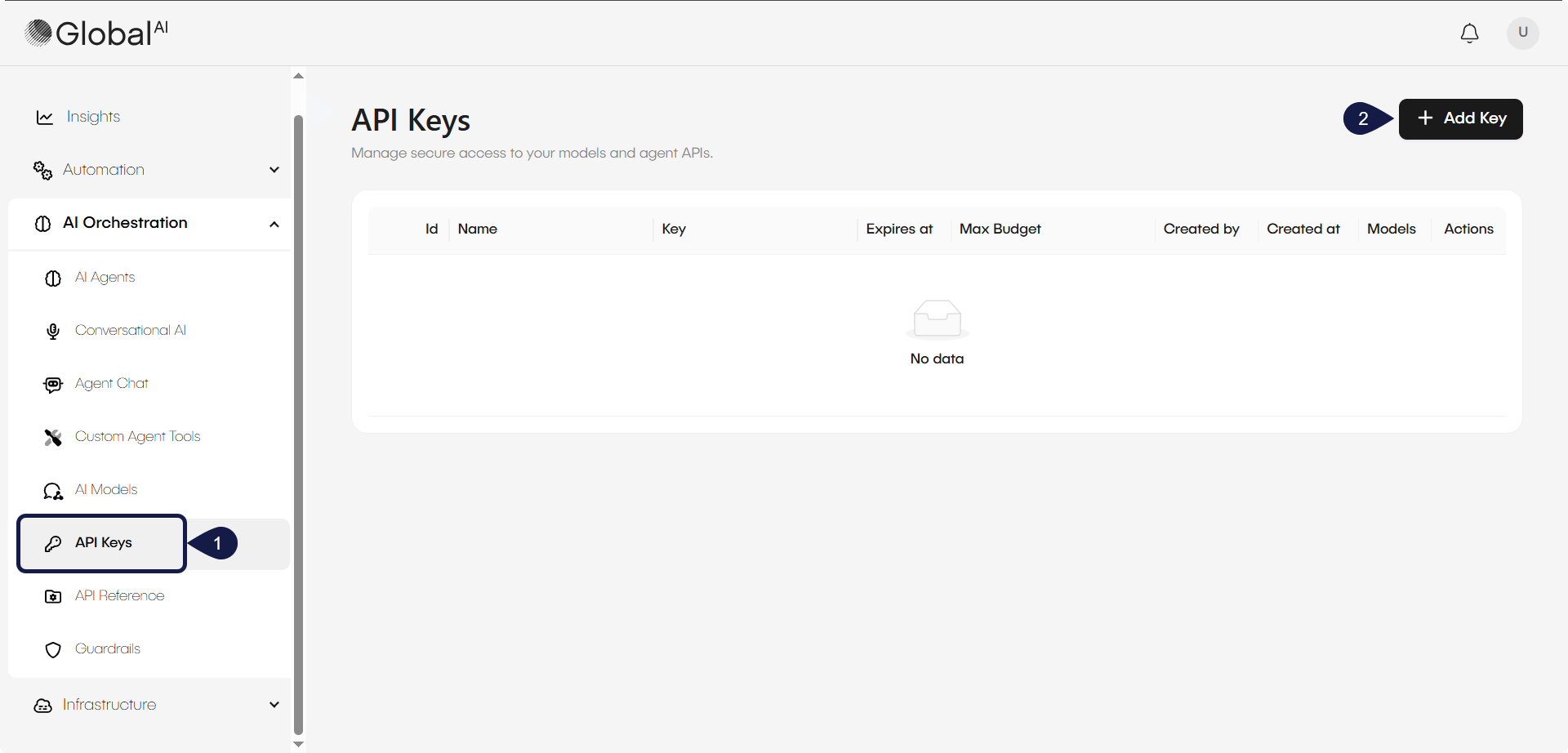
- Go to AI Orchestration > API Keys from the left sidebar.
- Click the + Add Key button to create a new key.
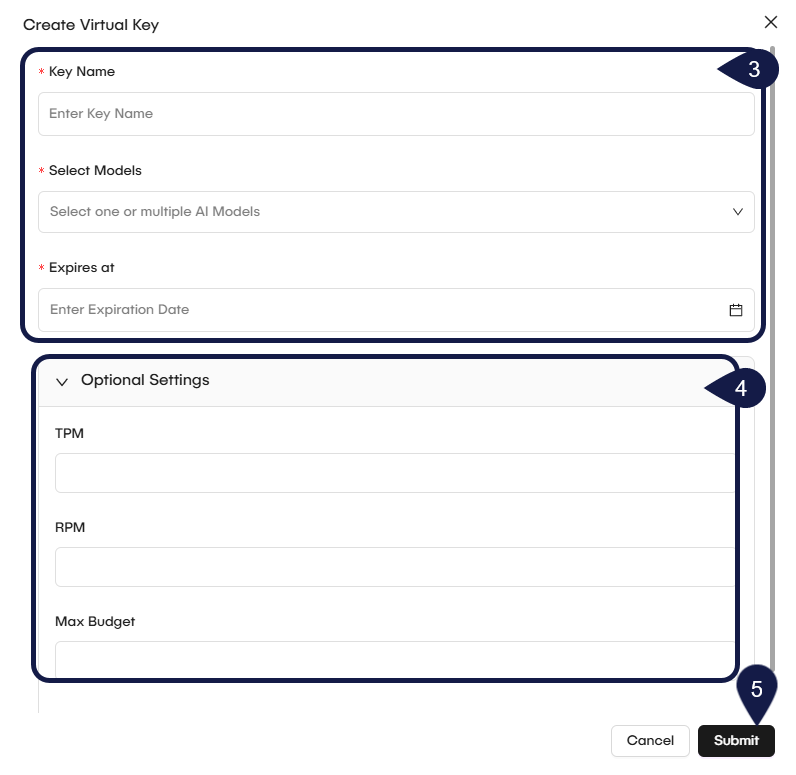
- In the modal window that opens, fill in the following details:
- Key Name: Enter a descriptive name (e.g.,
HR_Department_Chatbot_API_key). - Select Models: Choose the specific models this key will have access to.
- Expires at: Set an expiration date to enforce periodic credential rotation.
- Key Name: Enter a descriptive name (e.g.,
- Expand Optional Settings if you want to add governance limits:
- TPM (Tokens Per Minute): Limit how many tokens can be processed per minute.
- RPM (Requests Per Minute): Restrict how many API requests are allowed per minute.
- Max Budget: Set a budget cap to control resource usage for this key.
- Click Submit to generate the Virtual Key and add it to the list.
Manage existing keys
Once created, your keys appear in the main list on the API Keys page. The table displays the ID, Name, Created at date, and associated Models.
- Edit a Key: Locate the key in the list and use the actions menu to modify its settings, such as extending the expiration date or adjusting TPM/RPM limits.
- Revoke a Key: If a key is compromised or no longer needed, delete or deactivate it to immediately cut off access.
Related articles
Now that you have created an API Key, you can learn how to consume your agents or review the API reference concepts.