How to Create and Manage Custom Agents Tools
Custom Agents Tools let you extend the capabilities of your AI Agents by integrating external services or APIs. This guide will walk you through the process of creating and managing Custom Agents Tools in GlobalAI.
Create a Custom Agent Tool
To create a Custom Agent Tool, follow these steps:
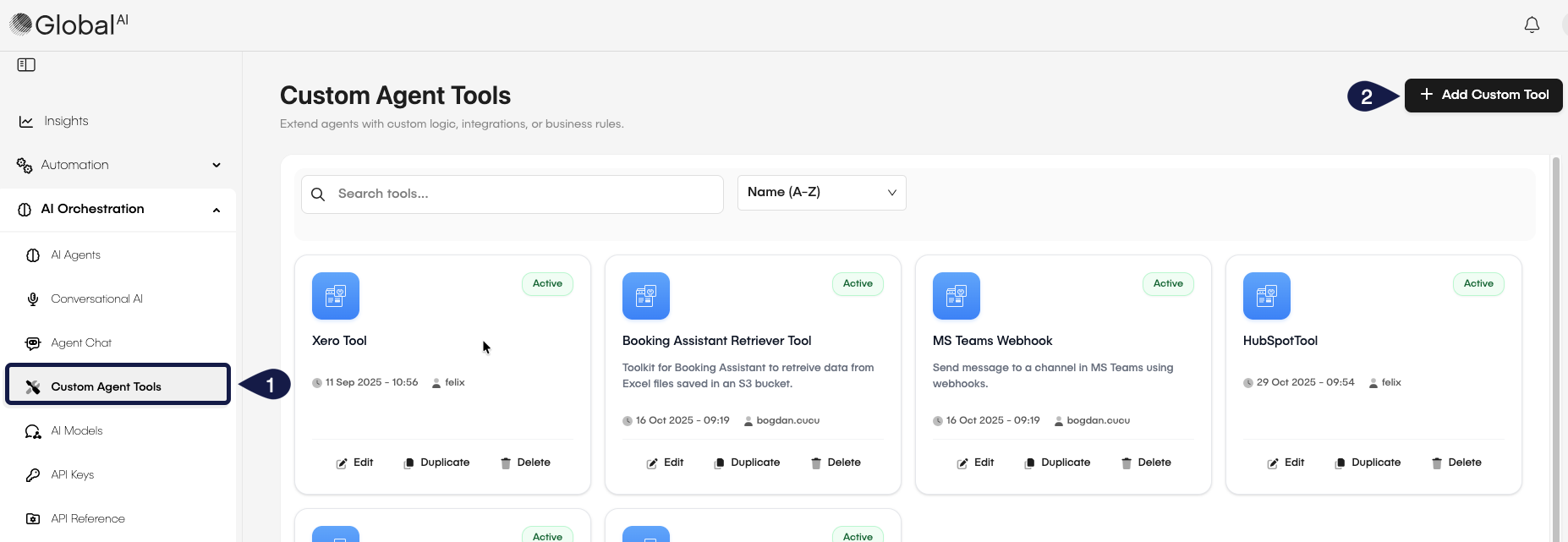
- On the GlobalAI dashboard, navigate to AI Orchestration > Custom Tools in the sidebar.
- Click on the + Add Custom Tool button.
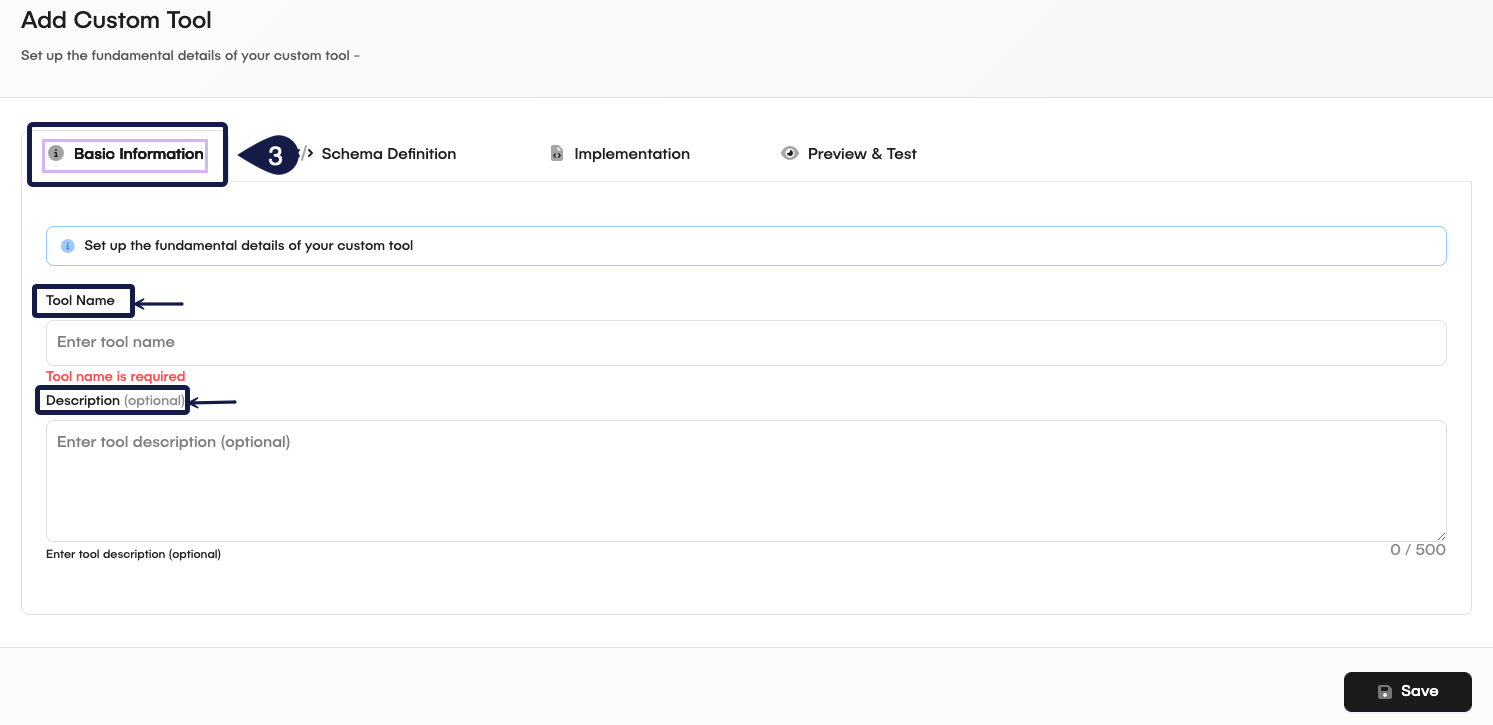
- On the Add Custom Tool form, on the Basic Information tab, fill in the following details:
- Tool Name: Enter a name for your Custom Tool.
- Description: Provide a brief description of what the tool does.
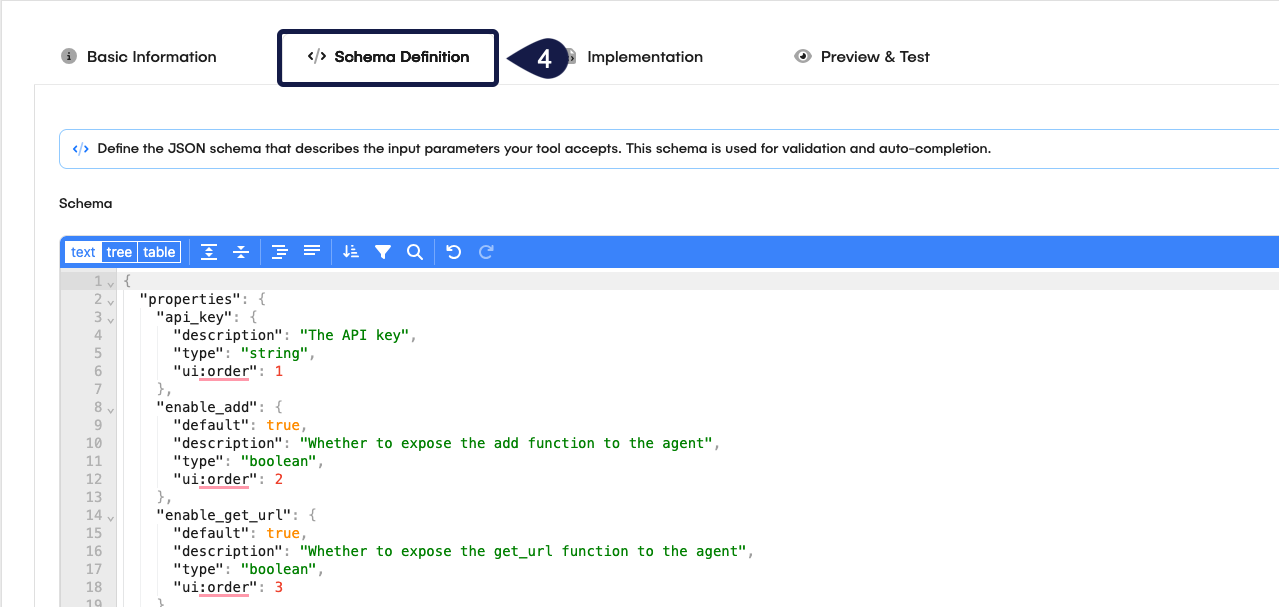
- On the Schema Definition tab, you can use the Schema editor to define the input and output parameters for your Custom Tool. You can specify the data types, required fields, and default values as needed.
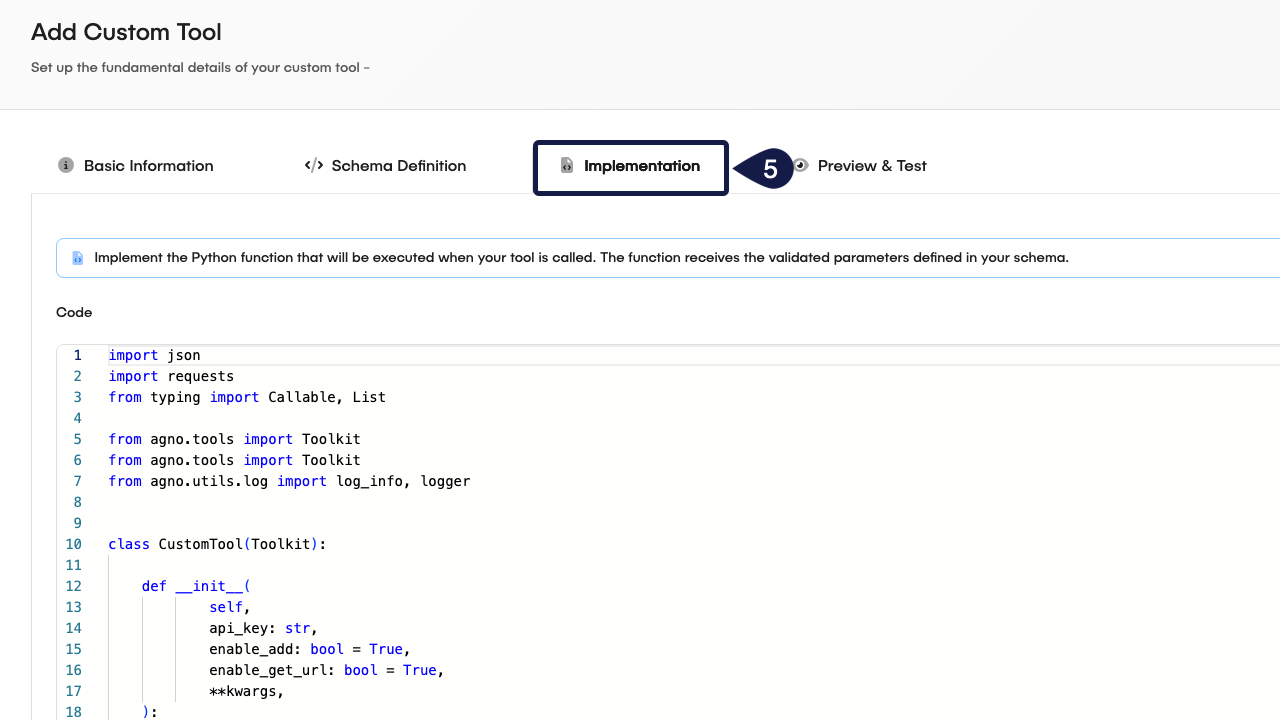
- On the Implementation tab, provide the code or script that defines the functionality of your Custom Tool. The system runs this code when an AI Agent invokes the tool.
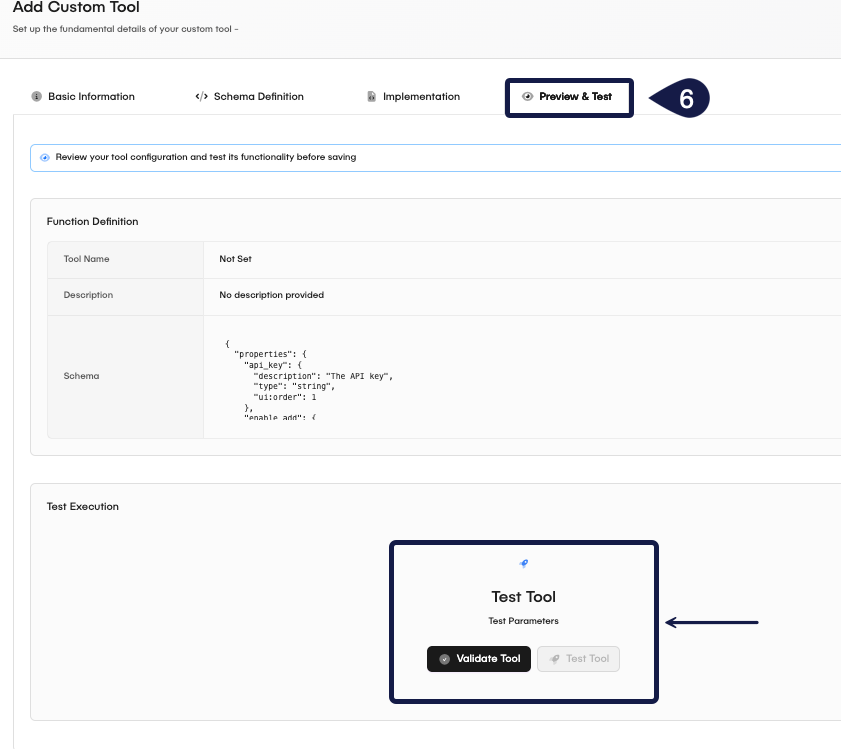
- On the Preview & Test tab, you can test your Custom Tool to make sure it works as expected. Provide example input data and verify the output.
- To test your tool, click the Test Tool button after entering the example input data.
- You can also check the tool configuration by clicking the Check Tool button.
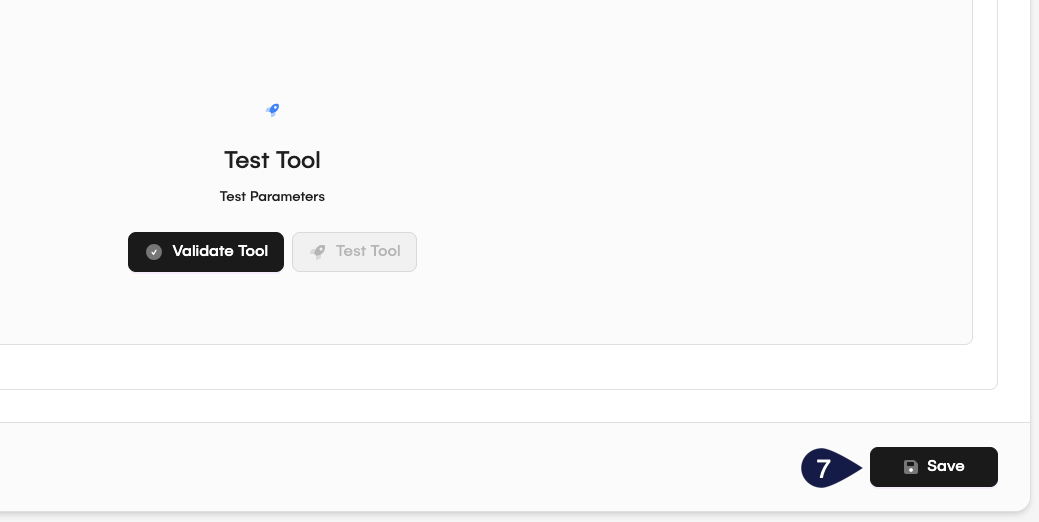
- Once you have completed all the tabs, click the Save button to save your new tool.
Manage Custom Agent Tools
To manage your existing Custom Agent Tools, follow these steps:
- Navigate to AI Orchestration > Custom Agent Tools in the sidebar.
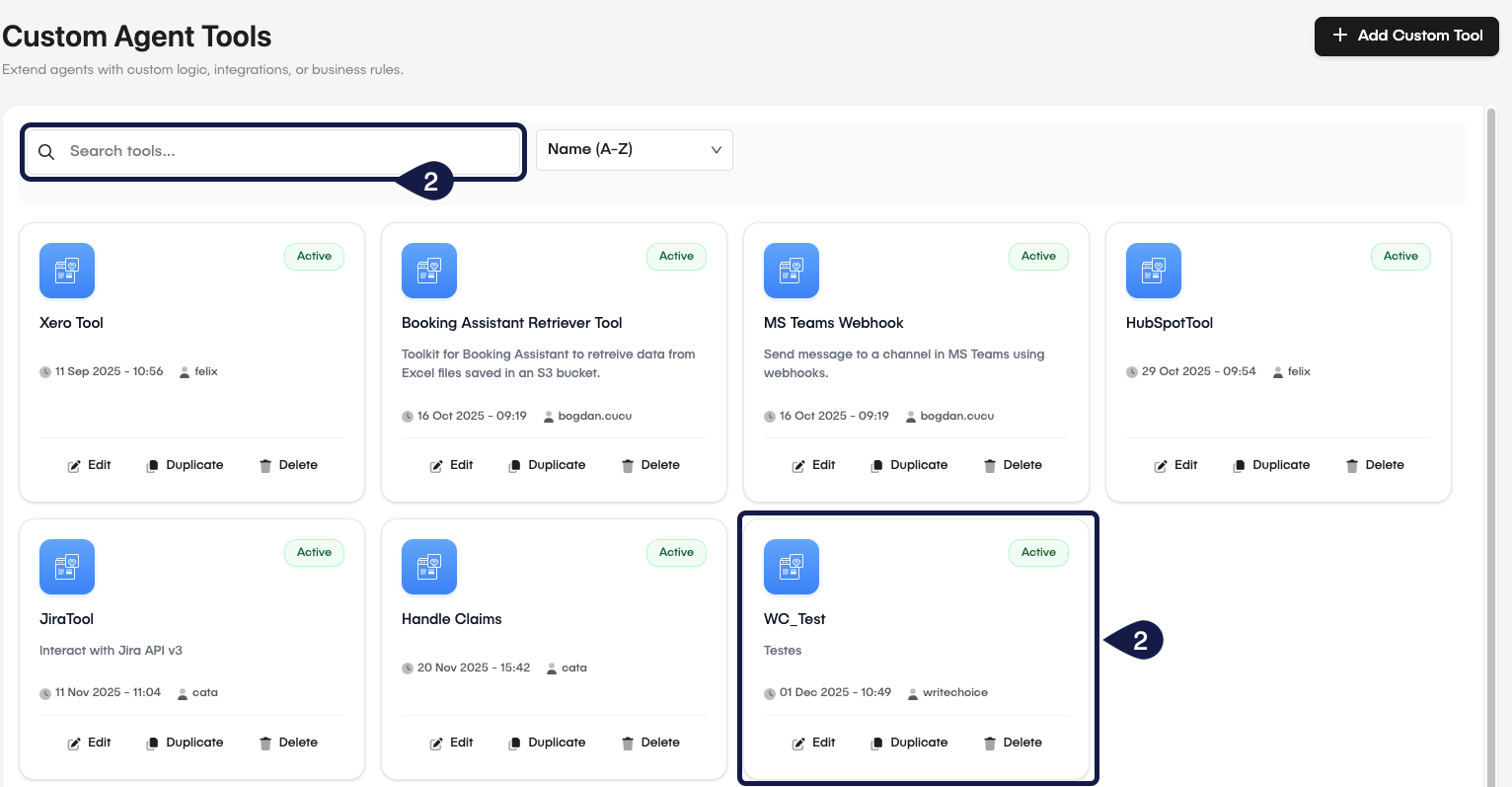
- On the Custom Agent Tools page, you will see a list of all your created tools. You can perform the following actions. You can search for your tools using the search bar at the top right corner of the page.
- Click on the card of a specific tool to Edit, Duplicate, or Delete.
Edit a Custom Agent Tool
To edit an existing Custom Agent Tool:
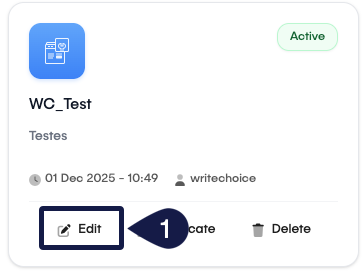
- Click on the Edit button on the custom tool card you want to change.
- Make the necessary changes in any of the tabs (Basic Information, Schema Definition, Implementation, Preview & Test).
- Click the Update button to save your changes.
Duplicate a Custom Agent Tool
To duplicate an existing Custom Agent Tool:
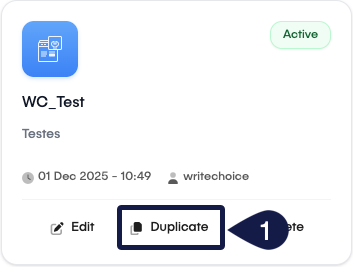
- Click on the Duplicate button on the custom tool card you want to copy.
- The system creates a new tool with the same configuration as the original. You can then change the name and any other details as needed.
- Click the Save button to save your changes.
Delete a Custom Agent Tool
To delete an existing Custom Agent Tool:
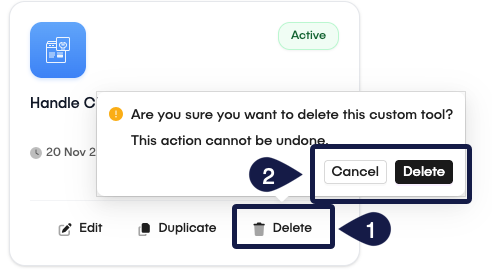
- Click on the Delete button on the custom tool card you want to remove.
- Confirm the deletion in the popup dialog.
Related articles
Now that you know how to create and manage Custom Agents Tools, you might want to learn more about: